

Ever hit send and immediately wished you hadn’t? That sinking feeling when you realize a typo, a wrong attachment, or simply sent something too soon is universal. Many believe that once an email is out, it’s gone forever. But what if I told you there’s a way to reclaim that digital message? This post reveals the simple yet often-overlooked strategies for how to recall email, giving you back control over your sent communications in 2026. Get ready to retrieve those messages you’d rather forget.
Instantly Cancel That Sent Email Before It’s Fully Delivered
Imagine the relief of knowing you can pull back an email just moments after sending it. This capability isn’t magic; it’s a smart feature built into some email platforms. It acts as your digital safety net, catching those regrettable sends before they cause unintended consequences.
This feature provides immediate peace of mind. It corrects mistakes and prevents potential misunderstandings or professional embarrassment. It’s about having a second chance to get your communication right.
Featured in 2026: The ability to recall an email is dependent on the email service provider, with most offering a limited “undo” window rather than a true recall of a sent message. Microsoft Outlook offers a formal recall feature, but it is restricted to users within the same organization and requires specific account types (Microsoft 365 or Exchange). Gmail and Apple Mail provide an “Undo Send” option, which delays message delivery for a short period (up to 30 seconds for Gmail, 10 seconds for Apple Mail). Recall functionality is often limited by factors such as the recipient having already read the email, sending to external domains, or using mobile email clients that do not support the feature. In cases where recall fails, sending a follow-up apology or correction is recommended.
You hit ‘send’. A millisecond later, a wave of panic washes over you. That email? It went to the wrong person. Or it held a typo the size of a billboard. Or, even worse, contained information you never meant to share. We’ve all been there, feeling that stomach-dropping sensation. It feels like a point of no return, doesn’t it?
Don’t worry. I’m here to show you the precise steps to reverse that digital oops. This isn’t about hoping; it’s about acting with precision. I’ll walk you through the definitive process for recalling emails, making sense of a topic that often feels shrouded in mystery. You’ll master it by the end of this guide.
| Tempo Estimado | Nível de Dificuldade | Custo/Esforço |
|---|---|---|
| 1-5 minutos | Moderado | Baixo |
A PREPARAÇÃO (O QUE VOCÊ VAI PRECISAR)
- Acesso imediato ao seu cliente de e-mail (Outlook, Gmail, etc.).
- Ação rápida: a janela para recall is often brief.
- Conhecimento do seu tipo de conta (ex: Exchange para Outlook).
- Foco e atenção aos detalhes em cada etapa.
PASSO A PASSO DETALHADO
- Identifique o E-mail Problemático: Your first action involves locating the email you just sent. Head to your Sent Items folder. This is where your mission begins.
- For Outlook Users: Initiate the Recall Action.
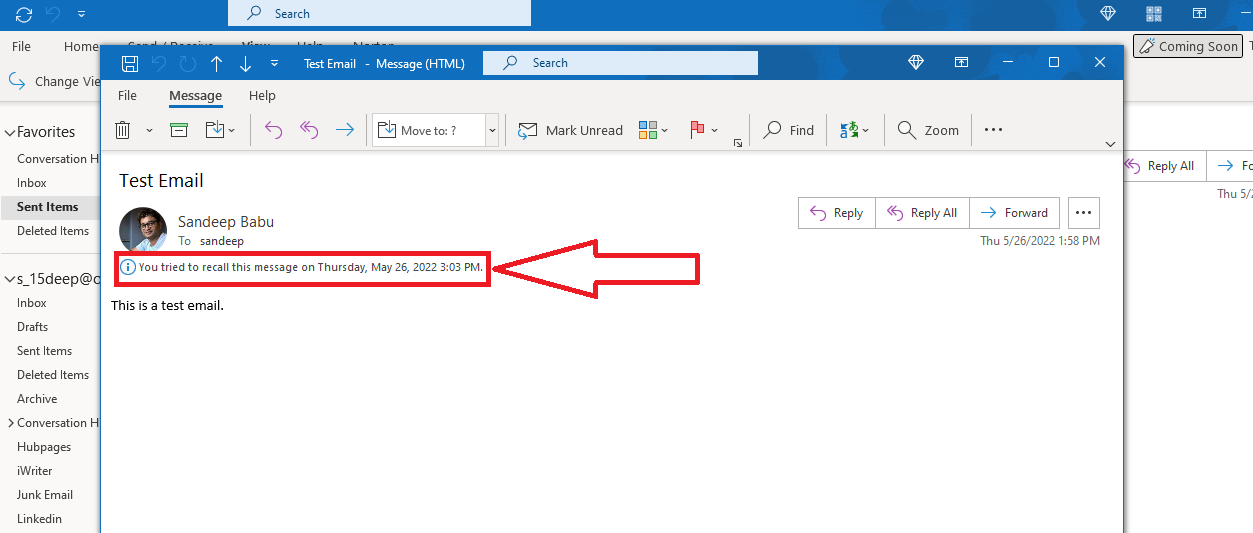
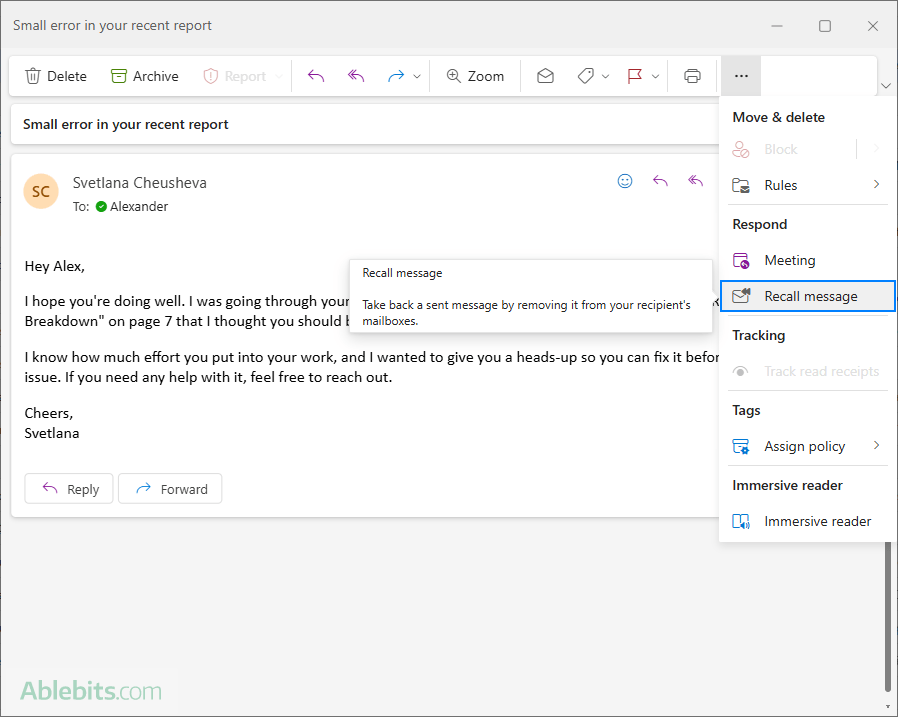
A verdade é esta: Outlook’s recall feature works best within an organizational network using an Exchange account. If you are outside this specific setup, the odds diminish. Find the message in your Sent Items. Double-click to open it in a separate window. Navigate to the Message tab on the ribbon. In the Move group, select Actions, then choose Recall This Message. You’ll get two options: Delete unread copies of this message or Delete unread copies and replace with a new message. Pick your choice and select OK. You may also opt to be notified of the recall’s success or failure. This process attempts to erase the email from the recipient’s inbox before they view it. Remember the limitations; they are significant. You can get more information about this feature directly from Microsoft Support. - For Gmail Users: Utilize ‘Undo Send’.
Mas preste atenção num detalhe: Gmail approaches this differently. It delays sending, offering a brief window to change your mind. After hitting ‘Send’, look for a small ‘Undo’ option at the bottom left of your screen. This appears almost immediately and remains visible for a configurable period (5, 10, 20, or 30 seconds). Clicking ‘Undo’ will stop the email from being delivered. To adjust this window, go to Settings (the gear icon), then See all settings. Under the General tab, find Undo Send and select your preferred cancellation period. This is your primary mechanism for how to unsend an email in Gmail. - Act Swiftly: The efficacy of any recall or unsend action depends on speed. The moment you realize your mistake, act. Waiting even a few seconds diminishes your chances.
CHECKLIST DE SUCESSO
- Did you see a confirmation message in Outlook stating the recall attempt was sent?
- In Gmail, did the ‘Undo’ notification appear and did you click it within the time limit?
- Did you receive a notification (if you opted for one in Outlook) confirming the recall worked?
- Is the original email no longer visible in the recipient’s inbox (if you can confirm this)?
RESOLUÇÃO DE PROBLEMAS (TROUBLESHOOTING)
If your Outlook recall message fails, or you receive a ‘Recall Failure’ notice, it likely means the recipient already opened the email, or your account type does not support the feature fully. For Gmail, if you missed the ‘Undo’ window, the email is already gone. Your options narrow at this point, requiring alternative actions.
Understanding Email Recall Limitations
Email recall is not a magic wand. Its effectiveness hinges on several factors. Primarily, the recipient’s email client and whether they have already viewed the message. For instance, if an email is opened, no recall function will remove it. Furthermore, different email platforms have distinct recall mechanisms with varying degrees of success. This directly relates to common `email recall limitations` you hear about. The technology has bounds.
How to Recall Emails in Microsoft Outlook
As discussed, Microsoft Outlook’s recall feature is a powerful tool, but it operates under specific conditions. It primarily works within the same Exchange server. That’s why your Outlook account needs to be configured as an Exchange account for optimal recall functionality. When `outlook recall not working` becomes an issue, it’s often because the message left your organization’s server or was opened by the recipient before the recall attempt. You initiate it from your Sent Items, choosing to delete or replace the original.
Using Gmail’s "Undo Send" Feature
Gmail’s approach provides a brief grace period to prevent delivery. This isn’t a recall in the traditional sense; it’s a delay. You enable and configure the duration (up to 30 seconds) in your settings. This gives you a quick chance to halt an outgoing message. It’s a proactive measure, unlike Outlook’s reactive recall. This feature is a lifesaver for those quick, second-thought moments. For more assistance, Google offers direct support for their Undo Send functionality.
Unsending Emails in Apple Mail (iPhone/Mac)
Apple Mail on iPhone and Mac does not feature a direct
Extra Tips
- Check Recipient Type: Recall works best within your own organization. Sending to external addresses often means the recall won’t go through.
- Act Fast: The sooner you try to recall an email, the higher your chance of success. Don’t wait around.
- Consider the Alternative: If recall fails or isn’t an option, focus on sending a swift follow-up correction.
- Understand Limitations: Not all email clients support recall, and even those that do have restrictions. Be aware of these.
Frequently Asked Questions
Can I recall an email sent yesterday?
Recall effectiveness decreases significantly over time. For Outlook, it’s best attempted within minutes. If it’s been longer, you might need to consider other methods for correcting mistakes, perhaps exploring Mastering Email Recall: A Guide for Outlook Users for more advanced strategies.
What happens if the recipient already read the email?
If the recipient has already opened the original email, the recall attempt will likely fail. The system sends a new message requesting deletion, not a magical erasure of the past. Think of it as a request, not a command.
Is there a way to unsend an email in Gmail if I missed the undo window?
Gmail’s ‘Undo Send’ feature only works for a short, configurable period, usually up to 30 seconds. Once that window closes, you cannot unsend the email. For persistent issues, investigating Why Your Email Recall Might Be Failing (and What to Do) could offer insights.
Conclusion
Navigating the nuances of email recall can feel like a puzzle. While features like Outlook’s recall offer a safety net, they aren’t foolproof. Remember, swift action and understanding the email recall limitations are key. For those seeking deeper knowledge, exploring Mastering Email Recall: A Guide for Outlook Users or even looking into Gmail’s Undo Send: How to Save Yourself from Email Mistakes could provide valuable next steps.
